Monday, November 24, 2014

PE 10: AVCHD 1080p60 Project Preset

INTRODUCTION

Recently in a forum discussion mention was made about Premiere Elements 10 not supporting AVCHD 1080p60. True, there is no AVCHD 1080p60 project preset in version 10 as there is in versions 11, 12, and 13.

ISSUE

There is a fine line between "non support" of AVCHD 1080p60 in Premiere Elements 10 and Adobe just not including that particular project preset in its lineup of project presets.

SOLUTION

The Premiere Elements 10 user can create a Premiere Elements 10 AVCHD 1080p60 project preset, import a 1080p60 source video into a Premiere Elements 10 project set with that user created project preset, edit the 1080p60 Timeline content, and export that 1080p60 Timeline content to an AVCHD 1080p60 file. The how to for this will be given in the next section How To. The new AVCHD 1080p60 file will be created by editing the Notepad document of the existing project preset AVCHD LITE 720p60.

HOW TO

Creation of the AVCHD 1080p60 Project Preset

STEP 1. 
Finding the AVCHD LITE 720p60.sqpreset to Edit it to AVCHD 1080p60.sqpreset
Follow the path
Local Disk C/Program Files/Adobe/Adobe Premiere Elements 10/Settings/SequencePresets/NTSC/AVCHD

In the AVCHD Folder, find the file named AVCHD LITE 720p60.sqpreset, right click it, select copy, and paste the copy to the computer desktop.

STEP 2.
Editing the AVCHD LITE 720p60.sqpreset
On the computer desktop, right click the AVCHD LITE 720p60.sqpreset file, select Open With, and then Notepad. The edits in the AVCHD LITE 720p60.sqpreset necessary to obtain the AVCHD 1080p60.sqpreset are

1. Two EditingModeGUID Lines Changes

From:
<EditingModeGUID.Win>fcf18658-5378-4d31-96b1-12fe7071f5a1</EditingModeGUID.Win><EditingModeGUID.Mac>fcf18658-5378-4d31-96b1-12fe7071f5a1</EditingModeGUID.Mac>

To:
<EditingModeGUID.Win>088bb726-9823-467e-b3b7-26f3703d4cf1</EditingModeGUID.Win><EditingModeGUID.Mac>088bb726-9823-467e-b3b7-26f3703d4cf1</EditingModeGUID.Mac>

Figure 1 shows after editing change for these two lines.

Figure 1. AVCHD LITE 720p60 NotePad Document. EditingModeGUID Lines After Edit

 2. </DescriptionItem> for User Language
(In this example, Language is English for United States)

See immediately after the EditinModeGUID lines.

From: 1280 x 720

To: 1920 x 1080

From: 720p

To: 1080p

Figure 2 shows after editing changes for United States (also started to do the same for France).

Figure 2. <DescriptionItem>, AVCHD 1080p60 After AVCHD LITE 720p60 Notepad Document Edit


3. </NameItem> for User Language
(In this example, Language is English for United States)

See immediately after section on </DescriptionItem>

From:

</NameItem>
            <NameItem Version="1" Index="0">
                <Second>AVCHD 720p60</Second>
                <First>en_US</First>

To:

</NameItem>
            <NameItem Version="1" Index="0">
                <Second>AVCHD 1080p60</Second>
                <First>en_US</First>

4.  </Name>

See immediately after section on </NameItem>
Only the following line needs changing

From:

<VideoFrameSize>0,0,1280,720</VideoFrameSize>

To:

<VideoFrameSize>0,0,1920,1080</VideoFrameSize>

The after edited <./Name> area is seen in Figure 3.

Figure 3. </Name>, AVCHD 1080p60 After AVCHD LITE 720p60 Notepad Document Edit.
STEP 3. 
Placing the new AVCHD 1080p60.sqpreset in the NTSC Folder along with the other Adobe .sqpreset files.

Move the newly created AVCHD 1080p60.sqpreset file to the AVCHD Folder in the path

Local Disk C/Program Files/Adobe/Adobe Premiere Elements 10/Settings/SequencePresets/NTSC/AVCHD

After that is done, the project preset AVCHD 1080p60 will be available in Premiere Elements 10 New Project dialog under NTSC/AVCHD with a valid description. See Figure 4.


Figure 4. Premiere Elements 10 New Project Preset Displaying Newly Created AVCHD 1080p60 Project Preset.

When the AVCHD 1080p60 project preset is selected, the project settings as reflected in Edit Menu/Project Settings/General will be the correct ones for AVCHD 1080p60. See Figure 5.

Figure 5. Premiere Elements 10 Edit Menu/Project Settings/General With Newly Created AVCHD 1080p60 Project Preset.


STEP 4.
Suggested Export of the Timeline 1080p60 to a 1080p60 File Save to the Computer Hard Drive

Share
Computer
AVCHD
with Presets = MP4 - HD 720p60
then, under the Advanced Button/Video Tab, customize the preset to 1080p60.
See Figure 6.

Figure 6. Premiere Elements 10. Export Of 1080p60 Timeline Content Using New Created AVCHD 1080p60 Project Preset And Export To AVCHD.MP4 1920 x 1080 @ 59.94 Progressive Frames Per Second.


 The playback quality of resulting AVCHD.mp4 using Window Media Player 11 on Windows 7 64 bit was excellent.

COMMENTARY

From the project preset side of things, if the user is not doing a frame by frame by frame editing of a 1080p60 source video, the DSLR settings for NTSC 1080p30@ 29.97 can be used and the frame rate matter dealt with in export.

One should not be forced to go to a later version for editing a 1080p60 video source in Premiere Elements 10.


ATR


Tuesday, November 11, 2014

PE 13: Elements Organizer 13/Share/Email

INTRODUCTION

Photoshop Elements 13 and Premiere Elements 13 are standalone programs, each coming with an Elements Organizer 13. When the two are on the same computer, they share the same Elements Organizer 13.

In the past, the list of Share opportunities under Elements Organizer/Share have typically included choices for "Photo Mail" and "Email Attachments". However, in Elements Organizer 13/Share, the listings for "Photo Mail" and "Email Attachments" are gone, but now is found a listing for "Email". This "Email" is essentially email attachments for photos and videos.

ISSUES

Internet Provider's File Size Limit

Although size adjustments can be made for photos, this cannot be done for video. And, if the video file size exceeds 10 MB, the user receives a warning notice. The issue here is not the feature, but rather the file size limit of the Internet Provider. It has been found that a 25 MB video could be sent successfully to a Gmail or Verizon email address when the Email Client was Gmail. Proof of success was in the form
  • a message from the feature, announcing emailing success and
  • a copy of the sent email in the user's Email program's Sent Items box. 
 However, the successfully generated emails were rejected by the recipient Gmail or Verizon.

Email Client Setup 

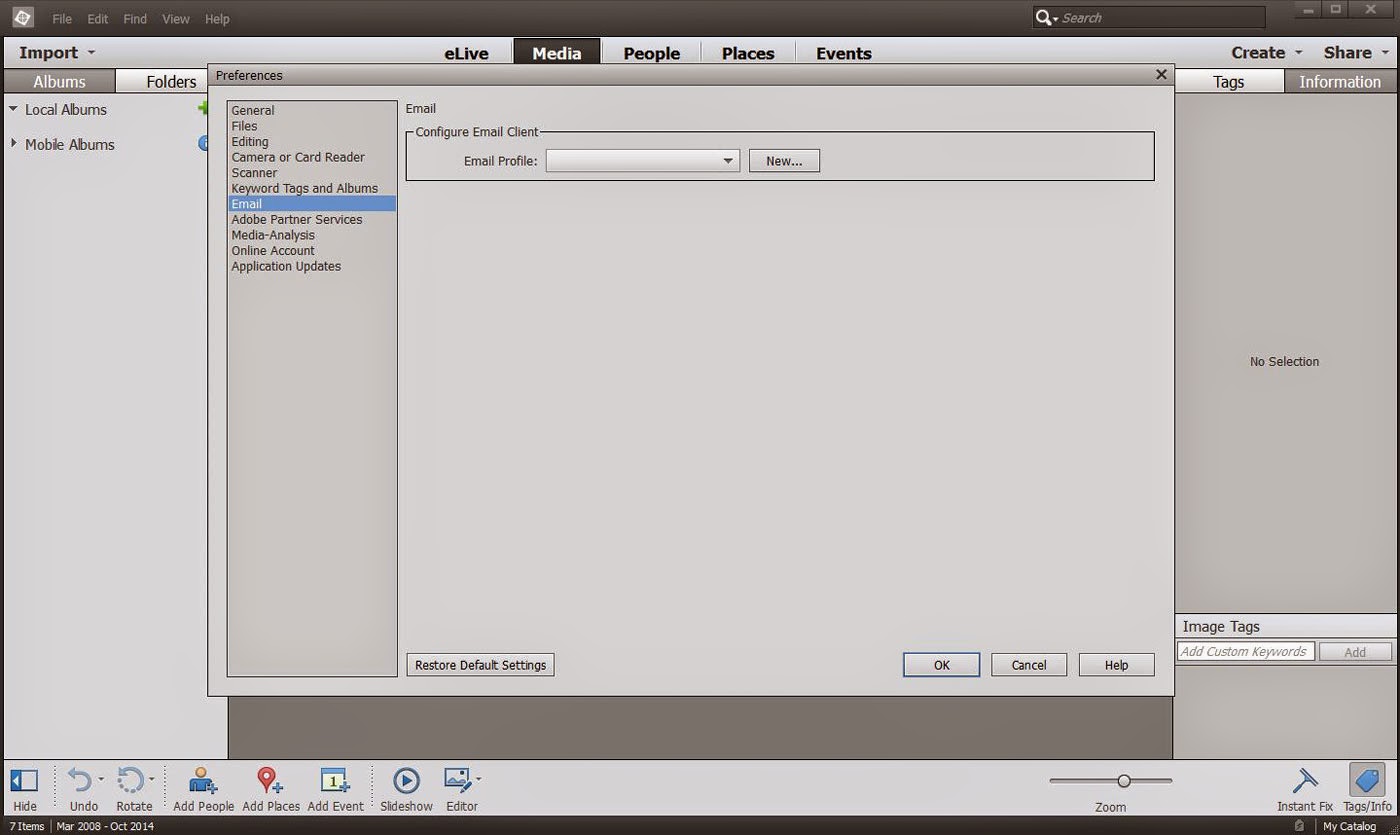
Before use the Email feature needs to be set up in the Elements Organizer 13 preferences via Edit Menu/Preferences/Email and its Email dialog. See Figure 1a.

Figure 1a. Elements Organizer/Share/Email And Its Email Dialog For Selecting And Configuring Email Client.
When New button is pressed to start the Email set up, a New Profile dialog pops up (See Figure lb) with choices of
  • AOL
  • Gmail
  • Yahoo!Mail
  • Microsoft Account
  • Other
Figure 1b. New Profile Dialog Email Client Choices.
If the choice of "Service Provider" is AOL, Gmail, Yahoo!Mail, or Microsoft Account (for Hotmail), the user fills in fields which include
  • Email Address
  • Your Name
  • Password 
and then presses the Validate button in order to get a quick "Credentials validated successfully" message. No more waiting for Adobe email with verification code.

Now the not so good news. If the user selects Other, the user must fill in fields which include SMTP Server, SMTP Port, and Connection Security besides the Email Address, Your Name, and Password. It is the user setting of the SMTP fields that is the major issue. For example, under Other: with Verizon as the Service Provider, none of the expected SMTP settings are working (outgoing.verizon.net with ports 465, 587, or 25). Trying to get Other to work has been resulting in a pile up of names for non functioning Email clients under the Email Profile list. And, no way was found to delete them in the preference area.

SOLUTIONS

The way to clean up the unusable entries that result in the Email Profile list targets a file named email_accounts.xml which is found in Windows 7, 8, or 8.1 64 bit in the path
Local Disk C
Users
Owner
AppData
Roaming
Adobe
Elements Organizer
13.0
Organizer
and, in the Organizer Folder, is the email_accounts.xml file.

What to do with this email_accounts.xml file

a. If the user wants to start new in the preferences Email, then delete the file. A new email_accounts.xml file will be regenerated by the program once the Elements Organizer 13 is opened again.

b. If the user wants to remove just one or more profiles/accounts but not all, then open Notepad and edit the .xml file. To do this in Notepad, File Menu/Open and then browse to and select the email_accounts.xml. In the Notepad document, delete the account that is not wanted. Save the edited Notepad document (File Menu/Save).

Note: In the Notepad document for the email_accounts.xml file, the user can see the SMTP information that was used by Adobe behind the scenes when AOL, Gmail, Yahoo!Mail, and Microsoft Account (Hotmail) choices were validated. Those particular settings do work for validation of these 4 Email Clients under Other.

Still in search of answers for Other.

ATR


Monday, October 27, 2014

PE 11: SmartSound Error Windows 8.1 64 bit

INTRODUCTION
 
The following SmartSound error has been encountered by Premiere Elements 11 Windows 8.1 64 bit users when trying to access the "Use SmartSound" feature under the Music Tab of the Expert and Quick workspaces.
Error: Unable to acquire serial number for Express Track. Please make sure you are connected to the internet and click OK to try again.
I have confirmed this finding and contacted SmartSound Customer Service about the matter. SmartSound representative Frank* responded promptly with the resolution for now.

ISSUES

Some of the issues involved in gaining use of the free SmartSound soundtracks of Premiere Elements 11 SmartSound feature on Windows 8.1 64 bit include
  • Premiere Elements integration with SonicFire Pro will only work with Sonicfire Pro version 5.7.3-5.7.5.
  • Online serial number retrieval process no longer available. New serial numbers for versions of SonicFire Pro less than 5.8 are no longer available
  • SonicFire Pro 5.8 is available only purchase or tryout; nonetheless will not integrate with Premiere Elements.

SOLUTION

STEP 1
Get A New Free Serial Number

According to Frank from SmartSound Customer Service
For now, any Elements users who need a free serial number can email us at support@smartsound.com, preferably after creating an online SmartSound account, and we can provide them with a serial number that way.
STEP 2
Entering The New Free Serial Number Into SonicfirePro5.Exe

With Premiere Elements 11 closed.....
Local Disc C
Program Files (x86)
SmartSound Software
Sonicfire Pro 5
and, in the Sonicfire Pro 5 Folder, is the SonicfirePro5.exe which is opened by double clicking it.
Enter the new serial number to unlock Sonicfire Pro and apply all the updates.

STEP 3
Next, Applying Update Patch To Work With Sonicfire Pro 5.7.5

If Sonicfire Pro less than 5.7.5, SmartSound is recommending application of the update patch so that 5.7.5 is in use. See http://www.smartsound.com/support/updates/?product=sfp5

STEP 4
Open Premiere Elements 11 To Find a Working Music Tab/"Use SmartSound" feature.
______________________________________________________________________________

*Many thanks to Frank at SmartSound Customer Service who represented SmartSound and himself well in this matter - a model of excellent customer service and responsibility to customers.

Work In Progress.
Any further developments will be posted as they become available.


 ATR

Friday, October 24, 2014

PE 13: Blu-ray ISO Image and AACS Folder

INTRODUCTION

Premiere Elements earlier than version 13 does not offer a Blu-ray burn to folder option as there is for DVD and AVCHD. The classical workaround for a Blu-ray burn to folder has been to try to use Phantom Burner in conjunction with Premiere Elements to produce a Blu-ray VDD or ISO image that could be taken to Blu-ray disc with 3rd party software such as ImgBurn and Nero.

Now in Premiere Elements 13, Blu-ray as well as DVD and AVCHD burn to have built in the choice of ISO Image which can be taken to the appropriate disc using, for examples, ImgBurn, Nero, or CyberLink PowerProducer.

ISSUE

If Premiere Elements 13 Blu-ray disc format on Blu-ray disc is produced using the program's burn to disc, only a BDMV Folder and a CERTIFICATE Folder are present on the end product Blu-ray disc. However, with the ISO Image choice for Premiere Elements 13 burn to Blu-ray, the end product Blu-ray disc now has 3 folders: AACS Folder, BDMV Folder, and the CERTIFICATE Folder whether ImgBurn, Nero, or CyberLink PowerProducer is used to produce the Blu-ray disc end product.

What is this AACS Folder? From all that we can determine, the presence of this AACS Folder on the disc means "Movie is encrypted". At this point, the questions are "Why an encrypted movie for a home made movie?" and "What are the implications of this at playback time of this Premiere Elements 13 encrypted Blu-ray disc format on Blu-ray disc?"

SOLUTION

We do not have the answers for the ISSUE questions. This Premiere Elements 13 "encrypted Blu-ray disc format on Blu-ray disc" does play back on our computer CyberLink software without issue. We do not have Blu-ray playback equipment at this time to pursue this.

What this blog will present is the "what is" for Premiere Elements 13 burn to DVD, AVCHD, and Blu-ray with regard to
  • what gets saved to the designated hard drive save location when burn to folder or burn to ISO Image is selected rather than burn to disc
  • the end product disc's file system and folder(s) found on the disc
  • how to for taking the Premiere Elements 13 burn to folder and ISO Image to disc using ImgBurn, Nero, and CyberLink PowerProducer versions that we have and which we are mentioning here for informational and non promotional purposes.

    RESULTS*

    What Gets Saved To The Designated Hard Drive Save Location When Burn To Folder Or Burn To ISO Image Is Selected Rather Than Burn To Disc (See Table 1).

    Table 1. Saves From Burn To Folder And Burn To ISO Image For DVD, AVCHD, And Blu-ray Choices.

    The End Product Disc's File System And Folder(s) Found On The Disc

    Table 2 summarizes and compares the results when Premiere Elements 13 does the burn to disc versus when Premiere Elements 13 produces a Folder or ISO Image which is taken to disc by a 3rd party program. Table 2 results are from a study that used ImgBurn as the 3rd party program.

    Table 2. Premiere Elements 13. Disc End Product File System And Folders On Disc Associated With Burn To Choice Of Disc, Folder, And ISO Image.
    With the ISO Image choice for Premiere Elements 13 Blu-ray, the end product Blu-ray disc now has 3 folders: AACS Folder, BDMV Folder, and the CERTIFICATE Folder whether ImgBurn, Nero, or CyberLink PowerProducer is used as the 3rd party program to produce the Blu-ray disc end product.

    HOW TO

    Burn to Folder for DVD or AVCHD DVD
    ImgBurn

    STEP 1
    Click on "Write to files/folders to disc" choice.
    Because it was available, ImgBurn v 2.5.7.0 was used in these studies. 

    STEP 2
    In interface that opens, go to File Menu/"Browse for a source folder", and navigate to and select the whole VIDEO_TS Folder (from the DVD burn to folder) or the whole BDMV Folder (from the AVCHD DVD burn to folder).

    STEP 3
    Make sure that the name of your burner with DVD disc is set in Destination field. Place a check mark next to Verify. Assure that ImgBurn Options show disc file system ISO9660 UDF 1.02 for DVD folder and disc file system UDF 2.05 for AVCHD DVD. Have a check mark next to Verify. Hit the Build button at the bottom of the setup area.

    Note: ImgBurn automatically adds a CERTIFICATE Folder to accompany a BDMV Folder on the AVCHD DVD disc that it produces using the Premiere Elements BDMV Folder.

    Burn to ISO Image for DVD, AVCHD DVD, or Blu-ray
    ImgBurn

    STEP 1
    Click on "Write image file to disc" choice.
    Because it was available, ImgBurn v 2.5.7.0 was used in these studies.

    STEP 2
    In the interface that opens, go to File Menu/"Browse for source file", and navigate to and select the .iso file for DVD, AVCHD DVD, or Blu-ray ISO Image.

    STEP 3
    Make sure that the name of your burner with DVD or Blu-ray disc is set in the Destination field. Place a check mark next to Verify. Assure that ImgBurn shows disc file system ISO9660 UDF 1.02 for DVD ISO Image, disc file system UDF 2.05 for AVCHD DVD ISO Image, and disc file system  UDF 2.05 for Blu-ray ISO Image. Have a check mark next to Verify. Hit the Build button at the bottom of the setup area.

    Note: ImgBurn automatically adds a AACS Folder to accompany a BDMV Folder and a CERTIFICATE Folder on the end product Blu-ray disc. If Nero or CyberLink PowerProducer replaced ImgBurn in this Blu-ray ISO Image to Blu-ray disc task, an AACS Folder was also added to the Blu-ray disc to accompany the BDMV Folder and CERTIFICATE Folder.

    For CyberLink PowerProducer v5
    Blu-ray Disc Suite
    Utilities
    Burn to a disc image

    For Nero Essentials 9
    Back Up
    Copy Disc
    Nero Express Essentials workspace
    Disc Image or Saved Project


    ________________________________________________________________________________
    *Studies were performed using Premiere Elements 13 tryout on Windows 7 Professional SP1 64 bit.


    Work in Progress

    ATR

    Tuesday, October 21, 2014

    PE 13: Keyboard Shortcuts

    INTRODUCTION

    Premiere Elements 4 through 13 offer Keyboard Customization with Application and Windows categories, each filled with program functions with and without Adobe assigned keyboard shortcusts. All can be customized.

    The distinction between the Application and Windows categories is that Application is categorized according to the menus of the Premiere Elements workspace (for version 13, File, Edit, Clip, Timeline, Text, Action Bar, Tools, Window, and Help); whereas Windows is categorized according to the Windows of Premiere Elements (for version 13, Narration, Organizer, Disc Layout Window, Properties Window, History Window, Trimming Window, Monitor Window, Media Window, Sceneline Window, and Timeline Window.

    Much is the same going from 12 to 13 in this area, but there have been changes with the loss of some function choices and the addition of a few other. Note the Windows/Trimming Window addition. Prior blog posts with Premiere Elements keyboard customization details can be found here for 11 and here (item 0016) for 12.

    The Keyboard Customization (default) listings found in Premiere Elements 13* Edit Menu/Keyboard Customization are:


    PART 1

    APPLICATION


    more Clip


    more Text


    more Help

    PART 2

    WINDOWS 


    more Monitor Window


    _______________________________________________________________________________
    * Information is from Premiere Elements 13 tryout from Adobe, on Windows 7 Professional SP1 64 bit.


    ATR

    Wednesday, October 1, 2014

    PE 12: Portrait Oriented Video Source

    INTRODUCTION

    Premiere Elements (any version) has project presets for only SD and HD video 4:3 and 16:9 in the landscape orientation. The question was raised at the forum level whether or not it is possible to import, edit, and export portrait oriented video and maintain the portrait orientation without black borders throughout workflow.

    ISSUE

    Since there is no project preset for portrait oriented video source, what to do? And, if such a project preset were to be created at the user level, would it work to create the portrait oriented space in the Edit area monitor from which to edit the portrait oriented video import without black borders? And, could the edited Timeline portrait oriented content be exported to a portrait oriented video file saved to the computer hard drive?

    SOLUTION

    Using Premiere Elements 12/12.1 for this feasibility study, a portrait oriented 1080 x 1920 9:16 project preset was created by editing the Notepad document of the existing 16:9 Adobe DSLR 1080p30@29.97.sqpreset file.

    When this newly created project preset was used, portrait oriented video could be imported, edited, and exported using a Premiere Elements 12/12.1 project. And, the portrait orientation was maintained throughout the workflow. Previewing of the edited Timeline portrait oriented content in the Edit area monitor is an unresolved issue. If the Timeline content is rendered to get the best possible preview at the Edit level, the video displayed in the Edit Area monitor squeezes in resulting in black borders to the left and right of the video image on screen.


    HOW TO

    Creation of the 9:16 Project Preset

    1. Find the DSLR 1080p30@29.97.sqpreset file.
    Local Disk C\Program Files\Adobe\Adobe Premiere Elements 12\Settings\
    SequencePresets\NTSC\DSLR\1080p\
    and in that 1080p Folder is the DSLR 1080p30@29.97.sqpreset file that is to be copied.

    2. Copy the DSLR 1080p30@29.97.sqpreset file and paste it into a newly created desktop folder named 1920p. Change the name of the DSLR 1080p30@29.97.sqpreset file inside the folder to DSLR 1920p30@29.97.sqpreset.

    3. Open the 1920p Folder and edit the .sqpreset file in Notepad.
    To do that, right click the .sqpreset file, and, from the drop down menu, select Open With and then Notepad.

    4. In the Notepad document, there are two essential places that need editing to bring about the landscape to portrait orientation change in the workspace. One is at the top of the Notepad document, and the other is at the bottom of the document.

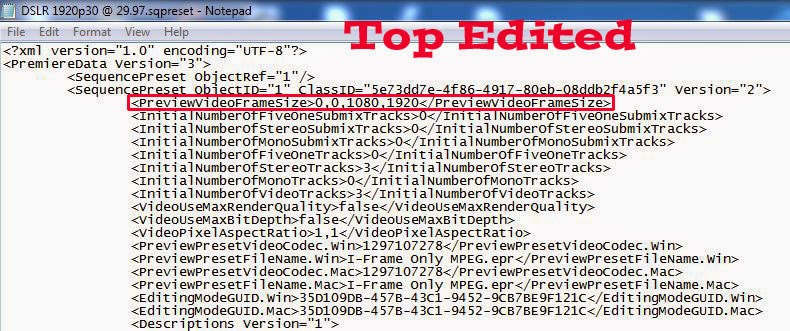
    At the top
    From
    <PreviewVideoFrameSize>0,0,1920,1080</PreviewVideoFrameSize>
    To
    <PreviewVideoFrameSize>0,0,1080,1920</PreviewVideoFrameSize>

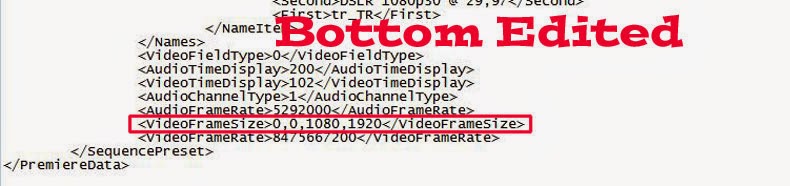
    At the bottom
    From
    <VideoFrameSize>0,0,1920,1080</VideoFrameSize>
    To
    <VideoFrameSize>0,0,1080,1920</VideoFrameSize>

    See Figures 1 and 2

    Figure 1. Sqpreset Notepad Document Essential Edit At Top Of Document


    Figure 2. Sqpreset Notepad Document. Essential Edit At Bottom Of Document.

    In order to get the description of the new project preset to present correctly within the opened Premiere Elements project, then edits of the Description line can be made for the specific language assigned to the computer. See  <Descriptions version = "1"> line at the bottom of Figure 1, and change the details to read for your language. Here the example is for English. The places of change are in bold text with orange background color.

    <Descriptions Version="1">
                    <DescriptionItem Version="1" Index="0">
                                    <Second>For editing most DSLR Formats (like the Canon EOS Movie Full
                                    HD series) recorded in 1080x1920 square pixels (non-   
                                    anamorphic).&#13;&#10;9:16 Progressive HD video at 29.97 frames per  
                                    second.&#13;&#10;48 kHz audio.</Second>
                                   <First>en_US</First>

    Then go to specifically File Menu/Save of the Notepad document and hit Save. Then File Menu/Exit.

    5. At this point, you have the edited sqpreset file in the 1920p Folder on the computer desktop.
    (Change the name of the edited sqpreset file so that it = DSLR 1920p30@ 29.97)
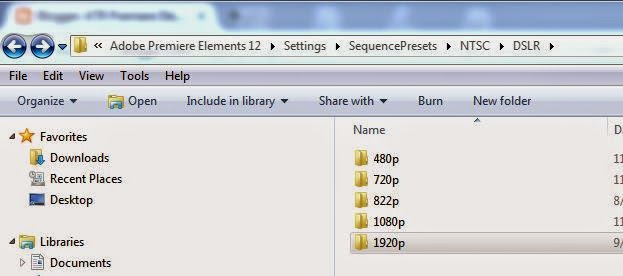
    Move the 1920p Folder from the desktop to the DSLR Folder in the Program Files path cited above and shown in Figure 3. Close out of there.

    Figure 3. Placement Of The 1920p Folder Containing The New 9:16 Project Preset In DSLR Folder In Path Local Disk C\Program Files\Adobe\Adobe Premiere Elements 12\Settings\SequencePresets\NTSC\DSLR.


    The Premiere Elements 12/12.1 Project Using The Newly Created 9:16 Project Preset

    6. Back in the Premiere Elements 12/12.1, manually set the project preset to the new project preset.
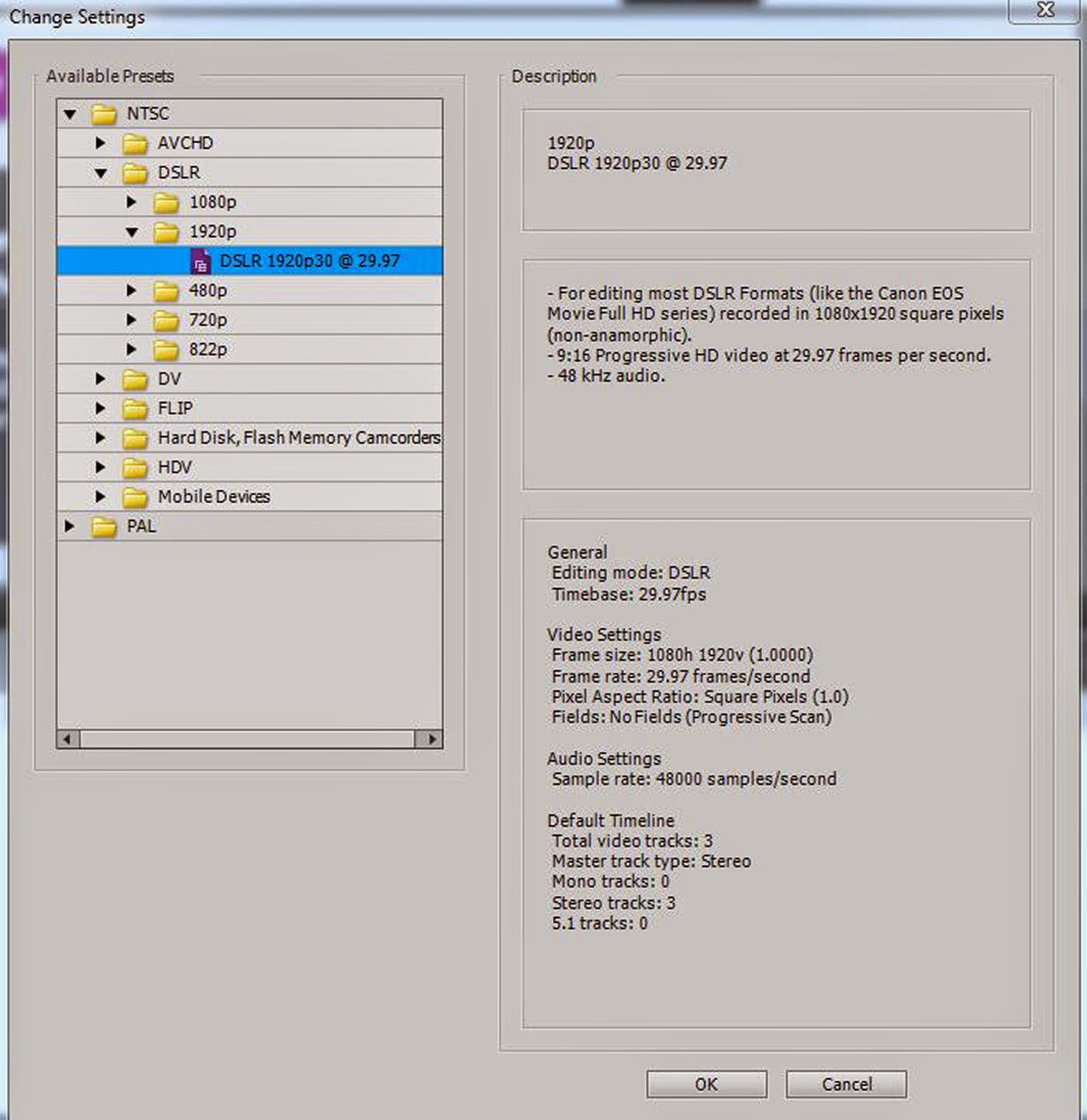
    See Figure 4 for Change Settings which now includes the new 9:16 project preset under the NTSC/DSLR/1920p/ accessed File Menu/New/Project.

    Figure 4. New DSLR 1920p30@29.97 Project Preset Available In Change Settings. Note Description Of New Project Preset In The Right Column Of Change Settings.

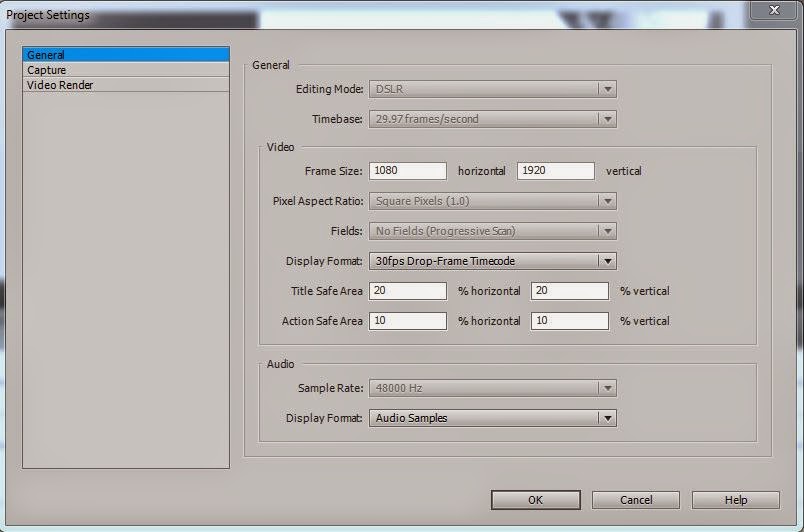
    The selection of the new DSLR 1920p30@29.97 progressive frames per second project preset should have the corresponding details in Edit Menu/Project Settings/General. See Figure 5.

    Figure 5. Project Settings Dialog After Setting Project Preset To New DSLR 1920p30@29.97.

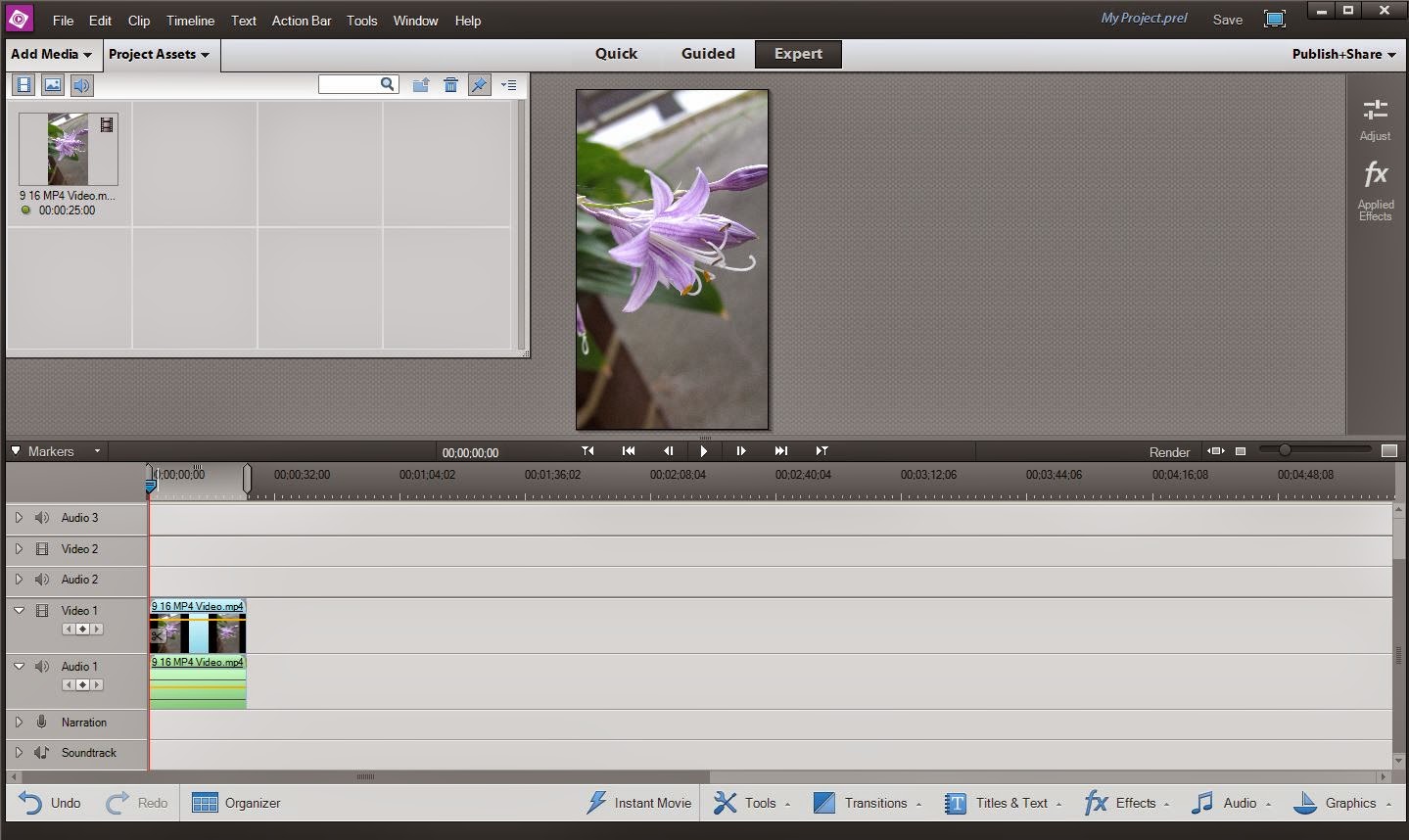
    When you import your 1080 x 1920 9:16 video file into the project set to that new project preset and drag it to the Timeline, you should see what is displayed in Figure 6 screenshot.

    Figure 6. AVCHD.Mp4 1080 x 1920 @ 29.97 Progressive Frames Per Second File Imported Into Premiere Elements 12/12.1 Project With Project Preset = NTSC/DSLR/1920p/DSLR 1920p30@29.97.

    Note that the video imports with no colored line over its content. Once edits are applied to that Timeline video, an orange line will appear over that Timeline content. DO NOT RENDER. See detail on that in SOLUTION introduction.

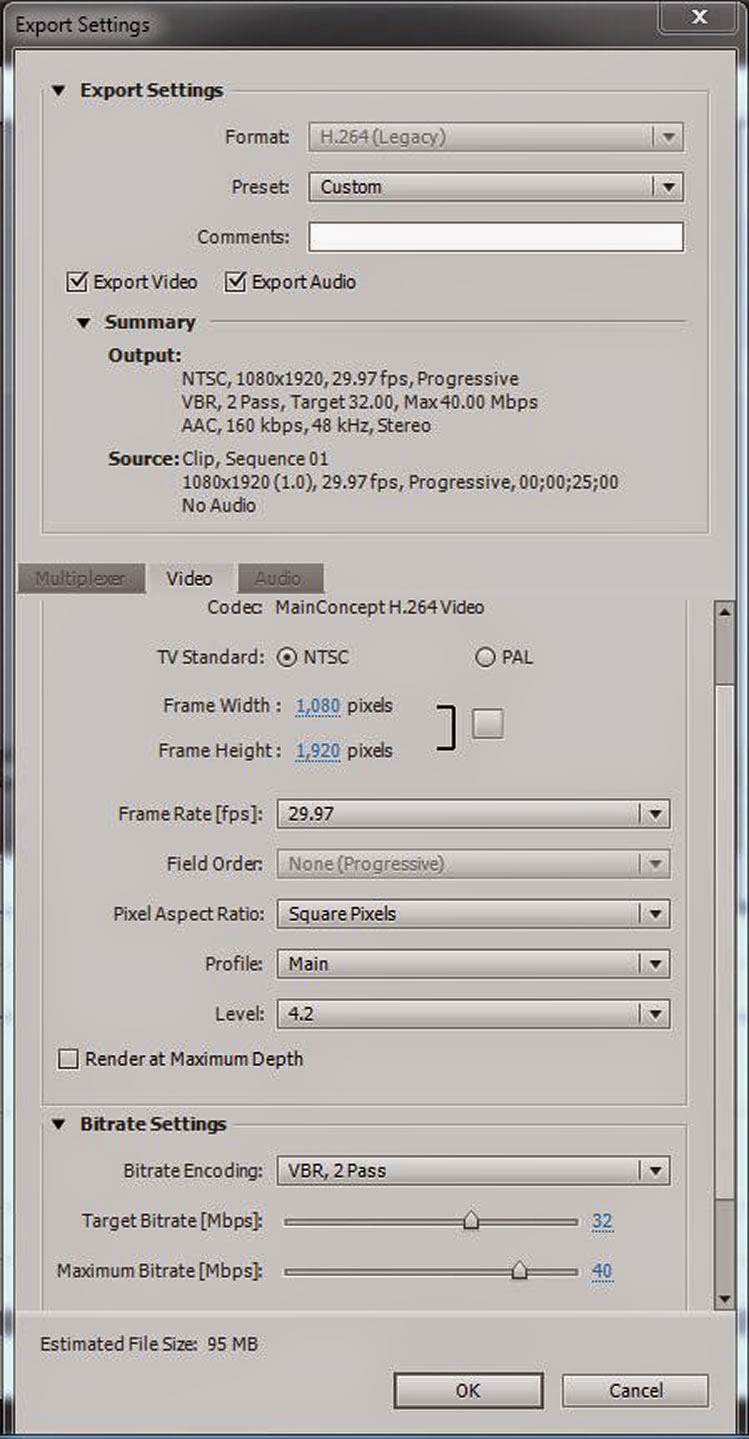
    The edited Timeline content was successfully exported to AVCHD.mp4 1080 x 1920 @ 29.97 progressive frames per second, using Publish+Share/Computer/AVCHD with Presets = MP4 H264 1920 x 1080p30 and the export setting customized to 1080 x 1920 under the Advanced Button/Video Tab of the preset. See Figure 7.

    Figure 7. Export Settings For 1080 x 1920 File From Premiere Elements 12/12.1 1080 x 1920 Project.


    Playback of the 9:16 Export of the 9:16 Timeline Content

    7. The video looked great in QuickTime in a portrait orientation (no black borders) and has been uploaded to this blog post to determine how it would display here.

    Demo 1. 1080 x 1920 @ 29.97 AVCHD.MP4 Video Uploaded To This Blog Post And Played Back Using the Blogger Player.

    The Blogger Player played back the 1080 x 1920 @29.97 progressive frames per second as a portrait oriented video with large black borders to the right and left of the image. The same was seen when the video was played back on the computer's VLC Player and Windows Media Player. To the contrary the QuickTime Player displayed this video in portrait orientation without black borders when using variety of its viewing options.

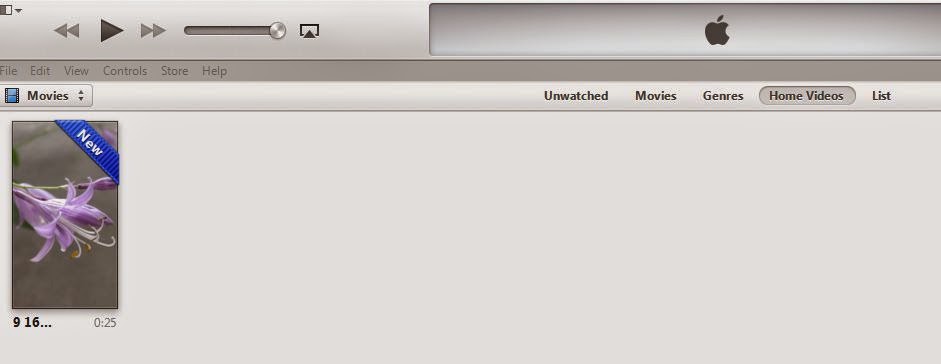
    When this 1080 x 1920 @29.97 progressive frames per second movie was imported into iTunes Library, its thumbnail was portrait oriented. See Figure 8. But, when this movie was played back there in the iTunes player, the display was like that of VLC Player and Windows Media Player, that is, portrait oriented with black borders to the right and left of the image.

    Figure 8. The 1080 x 1920 @ 29.97 Progressive Frames Per Second Movie Imported Into iTunes Library/Movies/Home Videos.
    Only the iPod Touch 4th generation was available for this study. It supports sync from iTunes of H.264.mov or .mp4 video up to 1280 x 720p30. This iPod refused to accept the 9:16 movie whereas it did accept the movie as 1280 x 720 16:9 movie. Owners of iPod Touch (later than 4th generation), iPhone, and iPad will need to determine if these devices will support the 9:16 movie sync from iTunes.

    COMMENTARY

    This feasibility study answered some major questions

    Yes for "Can a project preset be created at the user level which would work to create the portrait oriented space in the Edit area monitor from which to edit the portrait oriented video import without black borders?"

    Yes for "Could the edited Timeline portrait oriented content be exported to a portrait oriented video file saved to the computer hard drive?"

    And, the QuickTime Player appears to be a good choice for play back of the 9:16 export from the 9:16 project preset. But, much needs to be done regarding a device's sync to 9:16 movies that were imported into the iTunes Library.

    Problems related to rendering the Timeline 9:16 content in the Edit area remain unresolved, but, in these studies, this did not have any impact on the 9:16 end product from the 9:16 project. If you render the 9:16 Timeline content in Edit area, the results are meaningless, and, if you do not render the 9:16 Timeline content in Edit area, it makes no difference to the 9:16 end product.

    ________________________________________________________________________________

    ATR

    Continuing Investigation


    Sunday, September 28, 2014

    PE11: Image Transparency and Videomerge Pop Up

    INTRODUCTION

    Today at the Adobe Premiere Elements Forum  a very interesting report came up regarding maintaining transparency of a .psd file imported into a Premiere Elements 11* project.

    However, a closer look at the dynamics of the matter suggests that this situation goes more to the trigger on the Premiere Elements Videomerge pop up than to the Photoshop CS2 Save As with or without a check mark for Maximum Compatibility

    MaxPhotoshop.JPG

    And, it was also found that Photoshop CS5.1 as well as CS2 involvement in this matter is the same.

    To take a closer look at the situation, three 720 x 480 pixels documents were created in Photoshop CS2, each with a blue colored circle on a transparent background and Saved As
    • psd with check mark next to Maximize Compatibility
    • psd with no check mark next to Maximize Compatibility
    • png
    Each of them was imported into a NTSC DV Standard Premiere Elements 11 Windows 7 64 bit project, Video Track 2. Each triggered** the Premiere Elements 11 Videomerge pop up.

    VideomergeMessage.JPG

    If No in the Videomerge pop up was selected in reply to the project's request to apply Videomerge, all three results were the same, that is, the area around the circle was transparent and the circle was not...just the way it was created in Photoshop CS2.

    ISSUE

    So, why was the Videomerge message stating "Clip being dropped contains solid background color" when the clip had transparency represented by black and did not have a solid background color?

    Even more interesting was what happened if Yes was selected in response  to the program's request to apply Videomerge to create transparency for what it claimed to be seeing as "solid background color". The overall result was essentially the same for all three Yes cases, that is, the inside content of the shape became transparent and the "black which had represented transparency " became a "solid color". In the case of the .png file, the shape now appeared as a square rather than a circle and the "solid color" non transparent background was white. In the case of the .psd files, the shape was a circle, and the "solid color" non transparent background was black. There was no option in the Videomerge editing area to "Invert Selection" to try to correct the situation.

    SOLUTION

    To avoid the Videomerge pop up under these circumstances, in the Videomerge pop up, I would suggest placing a check mark next to the "Do not show again.", followed by No. When that is done, there should be no confusion related to the activities of the Videomerge pop up, and the Premiere Elements user should have no problems with the maintenance of the Photoshop created transparency in an image when that image is imported into a Premiere Elements project.

    _____________________________________________________________________________

    * Results are also applicable to Premiere Elements 13, 12/12.1, 10, 9.0/9.0.1.
    However, Premiere Elements 7 .png and .psd files presented with the circle shape and the transparency as created in Photoshop CS2 with either a Yes or No answer to the Videomerge message; consequently, there was no need to use its Invert Selection option for editing Videomerge. However, in Premiere Elements 8.0/8.0.1, the Yes maintained the circle shape and the transparency of the original Photoshop CS2 .png and .psd files only with the Invert Selection selected. After Premiere Elements 8.0/8.0.1, Invert Selection option is gone from the Videomerge Panel in Properties. There is no Videomerge in Premiere Elements 4. All results are for the conditions as described above.

    **In this particular exploration, the Videomerge pop up seemed to appear consistently when the file was placed on a track above Video Track 1.